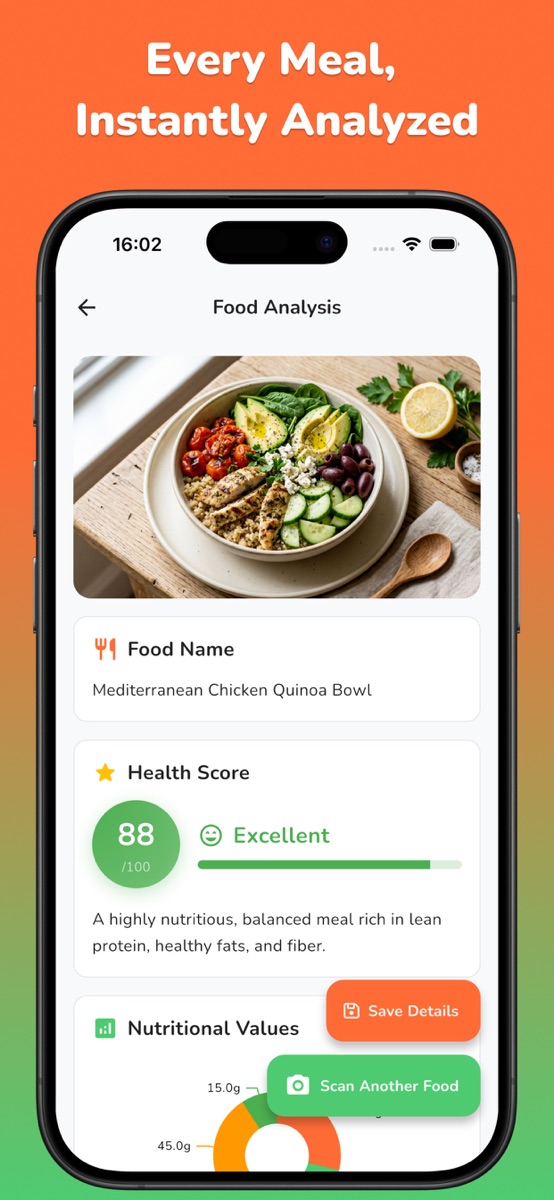
A photo calorie scanner gives an estimate, not an exact measurement. Check it against the same food, preparation and amount using a label or suitable food entry. One comparison cannot establish a universal accuracy percentage for an app.
1. Separate food recognition from calorie accuracy
A scanner can name the food correctly and still use a different portion or recipe assumption. A clear photo does not establish the grams on the plate, the ingredients underneath or the oil added during cooking. Check those separately rather than treating correct identification as proof that the total is exact.
This guide does not report a NutriLens accuracy benchmark or a guaranteed error range. Accuracy claims need to explain which meals, reference method and conditions were tested. Your own familiar-meal comparison can expose a mismatch; it cannot establish how every meal will perform.

2. Choose a reference that describes the same food
For a packaged item, keep the actual product label. Check whether its calories refer to one serving or the whole package. The FDA serving-size explanation shows why the amount eaten must be matched to the label basis; a serving size is not an instruction about how much to eat. For partial packs, per-100g values or prepared-food columns, use the serving-versus-container label worksheet before comparing the result.
For a basic ingredient, choose a suitable food-composition entry and retain its name or identifier. USDA Foundation Foods documentation explains that food descriptions include characteristics such as raw or cooked, and that sample values can vary. A dry ingredient entry is not interchangeable with an equal weight of the cooked dish. Labels and database values are references, not measurements of the particular plate.
3. Put a weighed serving on the label’s basis
Here is an invented label example to demonstrate the arithmetic, not nutrition data for a real product or a NutriLens scan. Suppose the label says 160 kcal per 40 g and the amount eaten is 60 g, measured on the same basis as the label.
Reference estimate = 160 × (60 ÷ 40) = 240 kcal
| Record | Example value | Reason |
|---|---|---|
| Label energy | 160 kcal | Energy for the stated serving |
| Label serving | 40 g | Denominator of the portion calculation |
| Weighed amount eaten | 60 g | Amount being compared with the photo |
| Serving multiplier | 60 ÷ 40 = 1.5 | The amount is one and a half labeled servings |
| Reference estimate | 160 × 1.5 = 240 kcal | A quantity-scaled label estimate, not an AI result |
Use a scale’s tare function so the container is excluded. If you add a separately measured topping afterward, record it separately. Do not compare a scan of the finished topped meal with the reference for the plain food alone. For a recipe with several ingredients, use the homemade-meal batch calculation.
4. Keep a comparison worksheet, not a marketing benchmark
For each check, photograph the portion you measured before eating it. Keep the original scan result and your reference calculation as separate fields. Leave unknowns visible instead of inventing a quantity to make the numbers agree.
| Field | What to write |
|---|---|
| Meal and date | The exact food, preparation and photo date |
| Reference source | Product label or matching food entry |
| Amount and basis | Quantity eaten; raw, cooked or as sold |
| Reference calculation | Source calories scaled to that amount |
| Scan estimate | The value actually shown in your app |
| Known mismatches | Different portion, missing topping or uncertain recipe |
A few familiar-meal checks help you understand your workflow, but they are not a representative validation study. Do not turn one close result into “the app is always accurate,” or a mismatched source into proof that every scan is wrong.
5. Investigate disagreement before changing the record
Start with the comparison itself: do both numbers describe the same food and amount? Check grams versus labeled servings, raw versus cooked entries, included sides, leftovers and extras outside the frame. These checks distinguish a portion mismatch from a recipe difference.
If the discrepancy remains unexplained, retain both values and the reason for choosing a reference in your separate notes. Repeatedly scanning until a preferred number appears does not verify it. When a recipe or quantity is unknown, record that uncertainty rather than reporting an exact error percentage. The portion-size guide helps separate visible clues from measured amounts.
6. Use NutriLens as the photo-first part of the check
With NutriLens, take a meal photo or select one from your gallery and review the estimated calories and macros. Keep the label, weighed amount and comparison worksheet in your own notes; this guide does not imply an in-app manual-correction or label-import feature. A nutrition health score is not a percentage guarantee of calorie accuracy.
NutriLens is free to download, with subscriptions and scan credit packs. The iOS App Store listing places detailed analysis and saving or revisiting scans in Premium. Check current access in your version before planning a repeat-scanning routine. A scan cannot establish allergy safety or replace individualized medical nutrition advice.
Common questions
How accurate are photo calorie scanners?
There is no accuracy percentage supplied by this guide. A photo estimate depends on food identification, portion and recipe assumptions. Check a familiar meal against a matching reference and known amount; do not generalize one comparison to every meal or app.
Can I use a nutrition label to check a scan?
Yes, when the label describes the food photographed and you scale its calories to the actual amount eaten. Check whether the figures are per serving or per package, and account for any separately added food.
Why might a scan differ from my label calculation?
The scan may use a different portion or recipe assumption, or the comparison may omit toppings, leftovers or another component. First confirm that both values refer to the same food, preparation and amount.
Does a meal health score show the scan’s accuracy?
No. A nutritional health score should not be read as a confidence percentage or a guarantee that calories match your particular serving. Review the food and quantity independently.
References and further reading
Published by Moocsoft, the independent studio behind NutriLens. Examples and worksheets are illustrative. App features can vary by platform and version; see the store listing for current availability and in-app purchases.